

Setting-Up Your Preferences
Your Preferences allow you to customize My Lesson Planner to your needs. These are the customizable options you will find in your Preferences:
1. Choose your Workspace homepage. We have three to pick from: Simple, Calendar or Dashboard
2. Enable features (Progress Monitoring, Attendance, Digital Forms)
3. Pick which Components are available on your Lesson Plan
4. Standards search options and standards lock down
5. Daily or Subject/Weekly lesson plan format options
6. Calendar options (show student birthdays, US holidays)
7. Color themes
8. Manage Classroom Information (classroom, students, parents, groups)
9. Manage Templates, View Groups, Library submissions, and public access
10. My Classroom Connection
Manage Account is where you can change your password, edit your name and email, and find information to cancel membership.
Set up Time: 2 Minutes
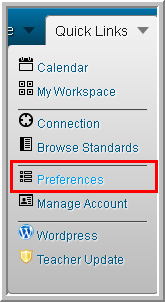
Start by mousing over Quick Links and choosing Preferences
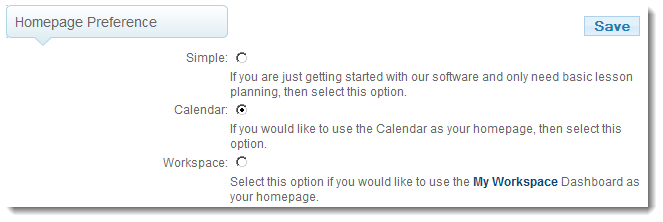
Choosing Your Workspace Home Page
When you first sign-up, you are defaulted to Simple view to help you get familiar with the software. You can also choose whether you would like to see a Workspace or a Calendar as your Home Page. This will be the first page you see after you log in. Once teachers are familiar with planning lessons on My Lesson Planner, most choose the Calendar option, but the choice is yours to make. Principals generally choose the Workspace.
Features
Enable Progress Monitoring: Progress Monitoring allows you to chart your progress monitoring efforts with your students. Your graphs will build for you, and we have built in examples and help descriptions along the way. Your classrooms and students must be set up for this feature.
Enable Digital Forms: My Lesson Planner will bring your forms to your fingertips. Just send us the forms you need, and we'll set them up in My Lesson Planner so you can have access to them when and where you need them.
Enable Attendance: You can enter attendance for your students on My Lesson Planner. The students who are absent will show on your calendar along with your lesson plans so you can see at a glance the students who were not present for that day's lessons. Your classrooms and students must be set up for this feature.
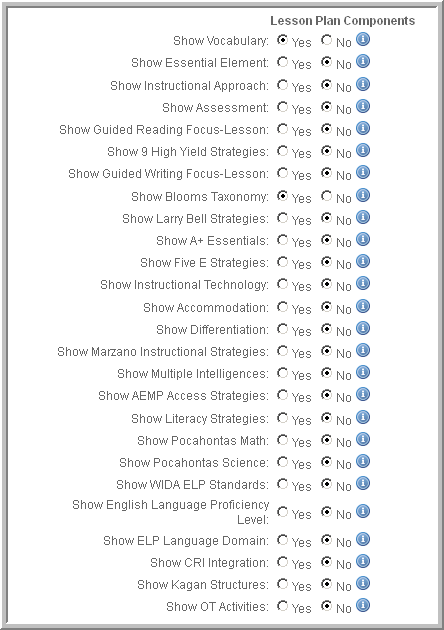
Components
Components allow you to document with a click implementation strategies you are using in your lesson plans. There are many available, and you can turn them on or off depending on your needs and school or district requirements. The  link gives you a bubble with more information about that particular component.
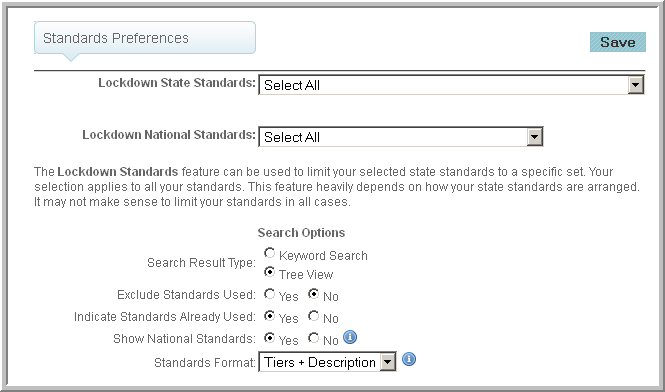
Standards
There are several options available to you regarding Standards.
Locking Down Standards: You can lock down the standards to a very specific set of standards. For example, you can lock down your standards to 8th grade language arts if that is the only subject and grade you teach. That way you don't spend time navigating through the standards you don't need. It may not make sense to limit your standards in all cases, so just be aware of the limitations in the way your state's standards are set up.
Standards Search: There are two ways to search the standards in My Lesson Planner. Choose the Keyword Search if you would like to search for specific standards by typing in a key word. Choose the Tree View if you would like to see and choose from all the standards. Both options are always available to you, but the one you choose will show first.
Exclude Standards Used: This option will cause the standards that have already been used in lesson plans to not show again in your standards tree or lists. Most teachers will avoid choosing this option, but there are some situations in which teachers teach a standard and don't return to any standard they have taught, and that is the reason for the option.
Indicate Standards Used: Choosing this option will put a red check mark next to the standards that you have already chosen for lesson plans so you can see at a glance the standards that still need to be taught.
Show National Standards : If your state is using Common Core State Standards, you must enable this feature. There are additional national standards that will also show.
Standards Format: This allows you to choose how your standards show in your lesson plans. This is an example of each option:
Tiers and Description: K-8.Language Arts.4.IR.1 Collect information about an assigned or self-selected topic.
Tiers Only: K-8.LA.IR.4.1
Description Only: Collect information about an assigned or self-selected topic.
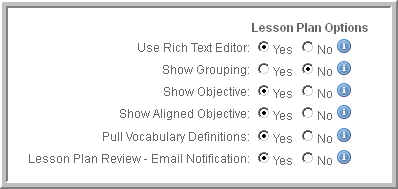
Lesson Plan Options
Use Rich Text Editor: This option is very rarely turned off. The Rich Text Editor allows your lesson plans to edit similar to word processing software. You can edit fonts, add pictures, link to URLs, add emoticons, etc.
Show Grouping: If you would like to set u your classrooms and assign students to specific groups, you can do that by managing your groups. You must have this option toggled on to be able to see them as a drop down in your lesson plans. We don't recommend using this option if you are new to lesson planning or new to My Lesson Planner.
Show Objective:Most teachers are required to put objectives in lesson plans, but if you are not, you can turn it off.
Show Aligned Objective: This feature is only available for school and district purchases. When schools and districts set up curriculum maps in My Lesson Planner, the objectives can be pre-written and aligned to the standards. When the standard is chosen, the objective will then automatically come with the standard, and you won't have to write an individual objective.
Pull Vocabulary Definitions: If you have chosen to Show Vocabulary, you can also choose to allow a definition to come with the vocabulary word. (Note: some layout options do not include the Vocabulary Component, so even though it is chosen to show and you have added Vocabulary Words, it won't show with that particular layout.)
Lesson Plan Review - Email Notification: This feature is only available for school and district purchases. When a principal, curriculum coach, or mentor teacher reviews your lesson plans, you will automatically receive an email notifying you.
Subject Lesson Plan
You have two choices for the day of the week font.
Calendar
You have the option to show or not show the US holidays on your calendar, and you can also choose whether to show the student birthdays. Student birthdays are set up when you set up classrooms and students.
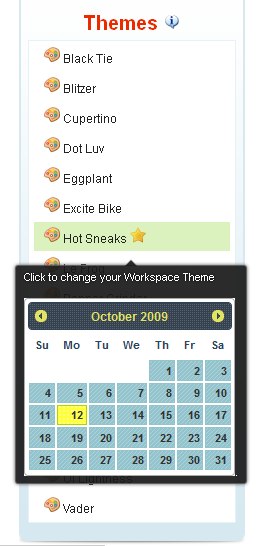
Color Themes
There are many color schemes available. Choose the one that suits your personality or needs. These color schemes will change the way your lesson plans appear, so give them a try and see how you like them.
Templates and Public Access
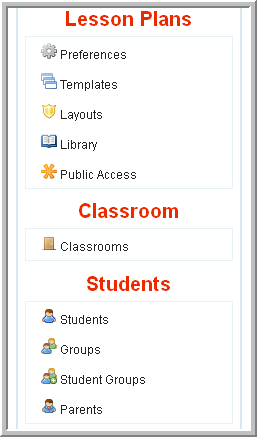
Templates On the left side of the Preferences page, you can click to manage your Templates. This is where you can access your Template lesson plans to make edits to the plans or to the descriptions or titles.
Library and Public Access You control if any of your lesson plans are place in the Library or are made available for public access for your parents or substitute teachers. You can manage the lesson plans (edit or remove) them in this section.
Manage Classroom Information
Managing your classrooms and students is found on the left side of the Preferences page. If you are wanting to customize your lesson plans with specific classrooms, students, or groups, you will add and edit in this section of your Preferences.
My Classroom Connection
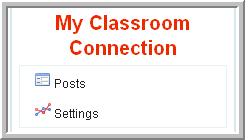
My Classroom Connection allows teachers to connect with parents with their own web page. You can make your lesson plans public (with or without a pass code) for your parents and give them information about what is happening in your classroom.
SAVE
Don't forget to click any of the "Save" buttons when you are finished configuring your preferences. You can return to preferences at any time to make additional changes.